Using the ISAM Agent Console
This page is for informational purposes only
If you are already familiar with or not interested in the capabilities of the ISAM Agent Console, skip this page.
In addition to operating as a background service, the ISAM agent also offers both an Administrative UI and a REST API.
All of the functionality of the Administrative UI is implemented via REST API endpoints, which means that if you want to embed monitoring and/or control of the agent into other applications, it is possible to do so.
Open the ISAM Agent UI
- Open the ISAM Agent Console
You should see something like this:
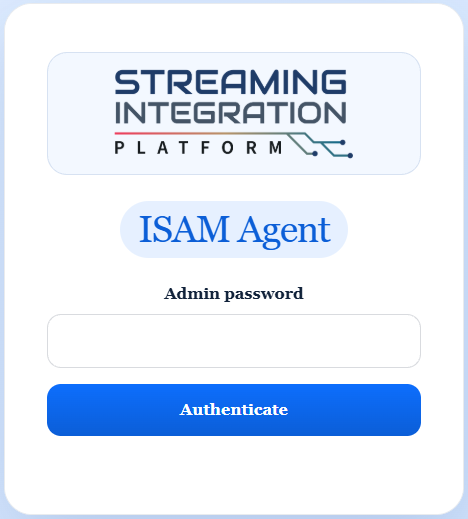
You may notice that unlike the initial state of the Configuration Server, the ISAM Agent is fully trusted by your browser. This is because on first startup the ISAM Agent:
- Determined that Configuration Server was in use in the environment.
- Registered as a known agent with Configuration Server and provided a unique and complex API password.
- Requested and downloaded a custom TLS certificate for exclusive use by the agent to secure access to its API and UI.
- Downloaded copies of the configuration files for the profile in use and cached them locally so that future instances will be able to start even if Configuration Server is unavailable.
Similar to the Configuration Server, there is only a single admin user and the password has a known default value which can be changed once authenticated.
Authenticate
Enter p@ssw0rd to authenticate.
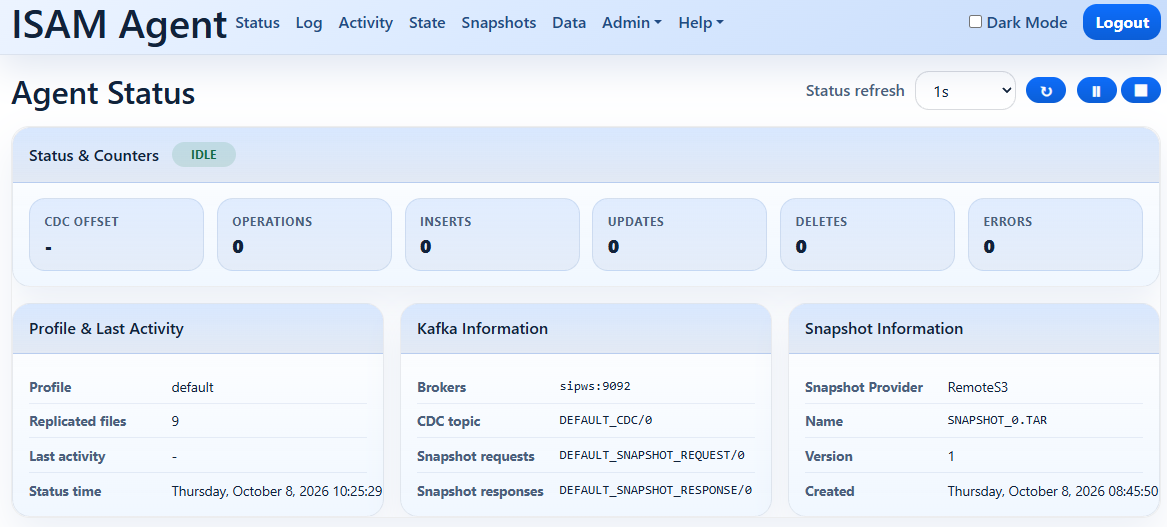
Status View
The status view isn't that interesting right now, because there has been no real-time activity, but it is useful to be able to see some of the main configuration options lower down the page.
Log View
- From the navigation bar at the top, click the Log option.
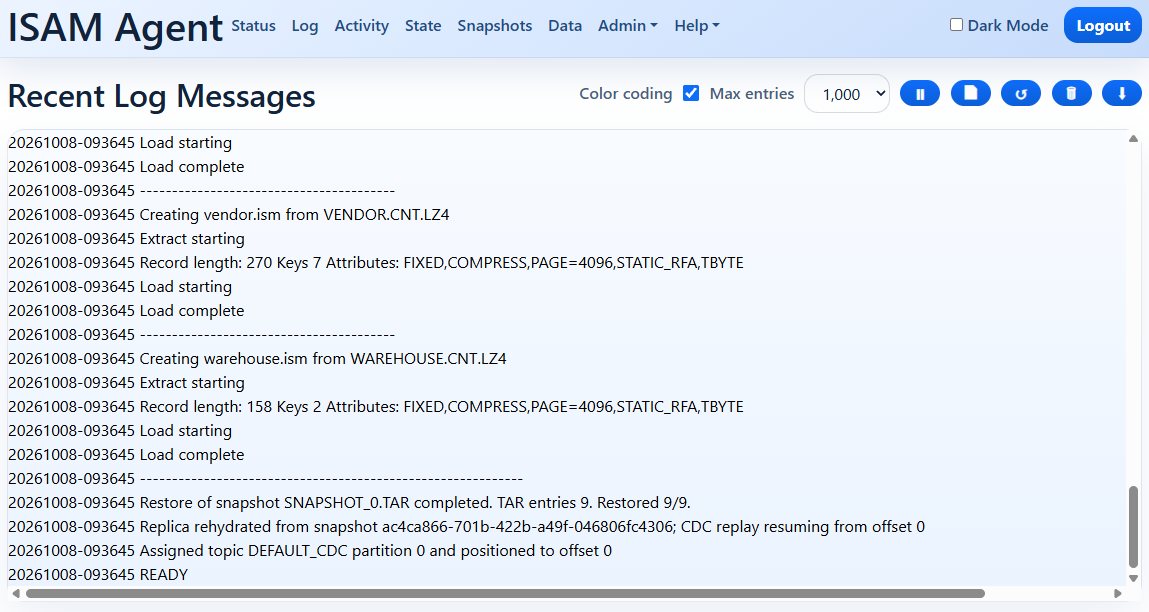
The Log view provides a real-time view of the most recent log entries:
Activity View
- From the navigation bar at the top, click the Activity option.
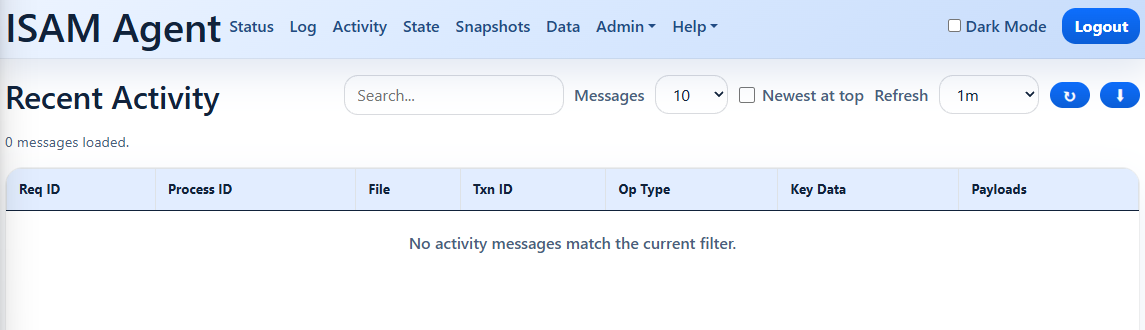
The Activity view provides an auto-refreshing view of the most recent messages in the Kafka CDC topic. As you can see, there aren't any yet:
State View
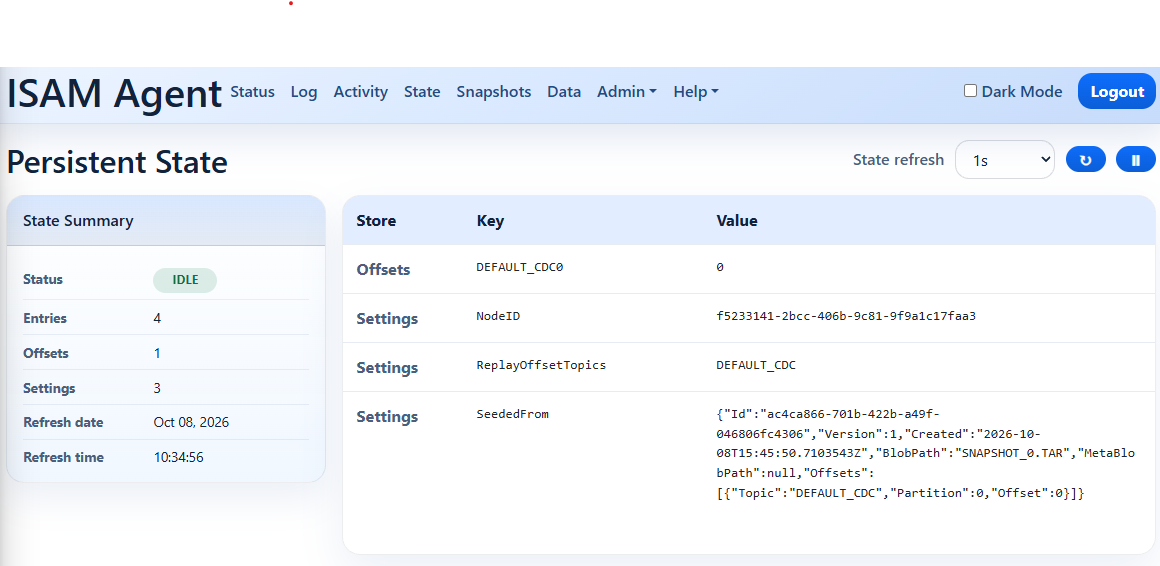
The State view provides an auto-refreshing view of the current state of the agent:
- From the navigation bar at the top, click the State option.
Snapshots View
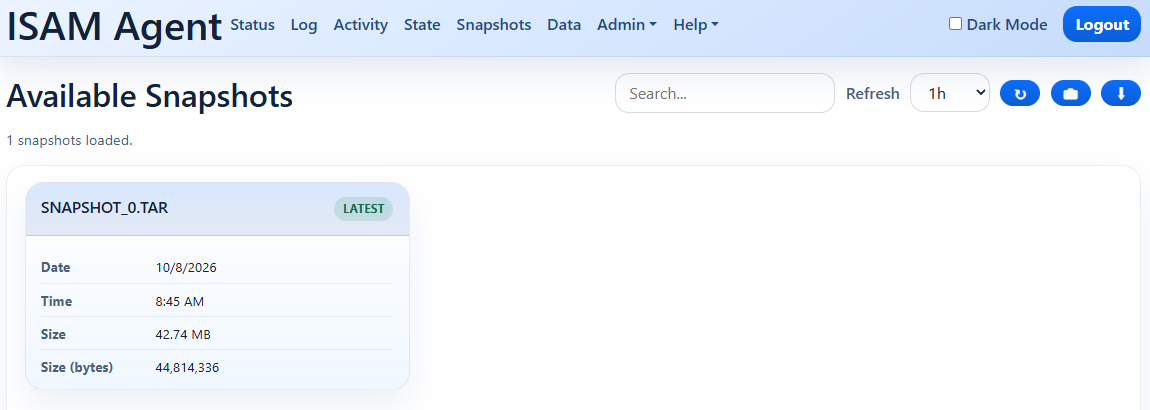
- From the navigation bar at the top, click the Snapshots option.
The snapshots view provides basic information about the snapshot messages that are currently present in the snapshot response topic.
Data View
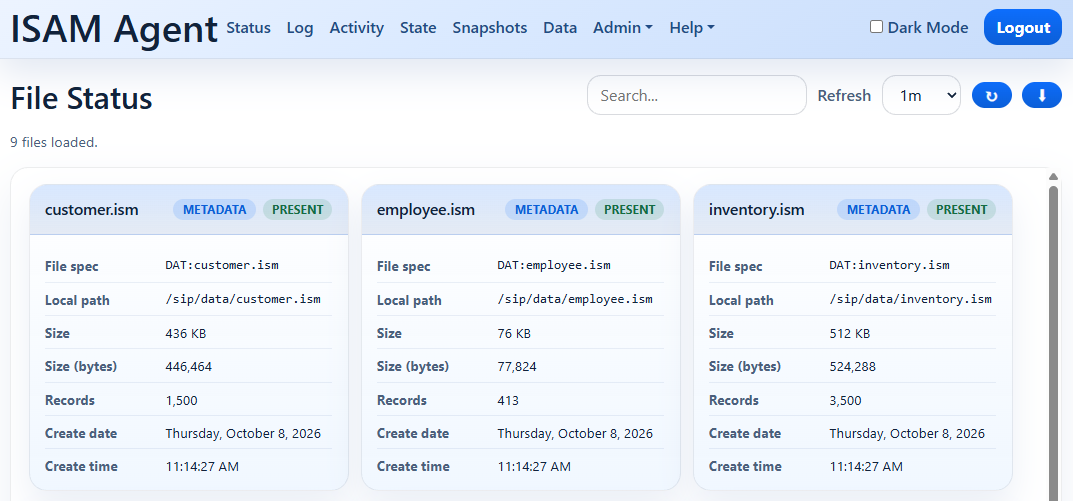
- From the navigation bar at the top, click the Data option.
The data view provides auto-refreshing information about the replica's data files.
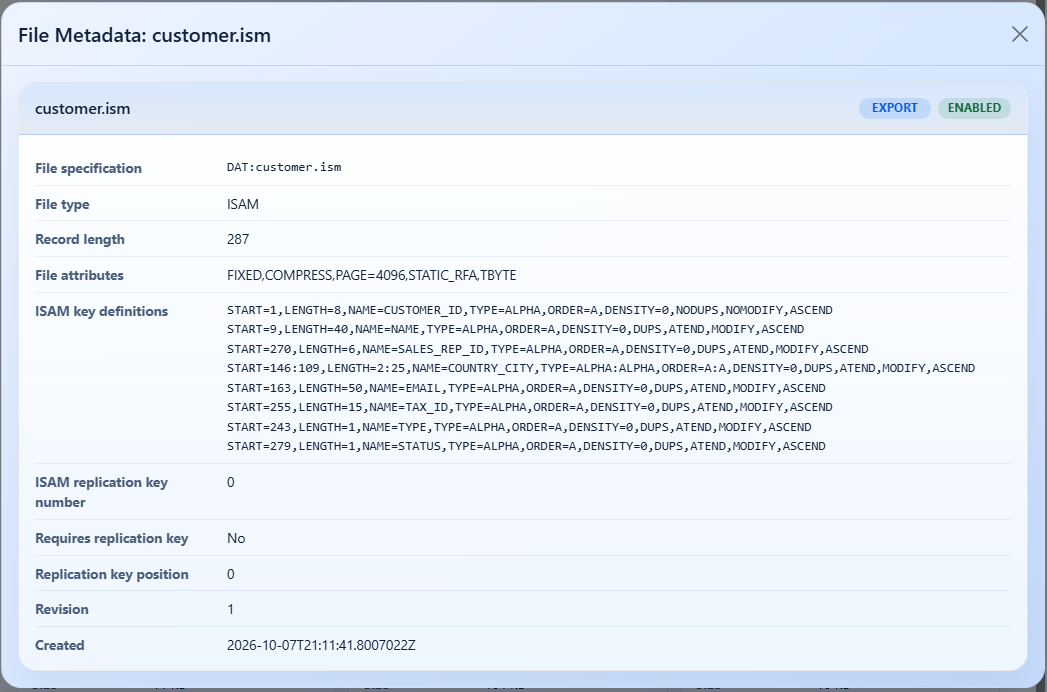
Clicking the METADATA label for a file pops up a card showing the metadata for the selected file.
Admin Menu
The Admin menu contains several useful options:
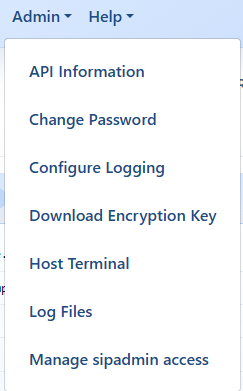
API Information
If enabled by the ISAMAgent.EnableSwaggerUI configuration option, the API Information option opens the Swagger UI page that describes and allows developers to explore and interact with the ISAM Agent API.
Note that access to the API is restricted; to interact with the API it is necessary to call the /api/auth/admin-token endpoint that accepts the current admin password and, if correct, returns a JSON Web Token (JWT) which must be provided to all other API endpoints.
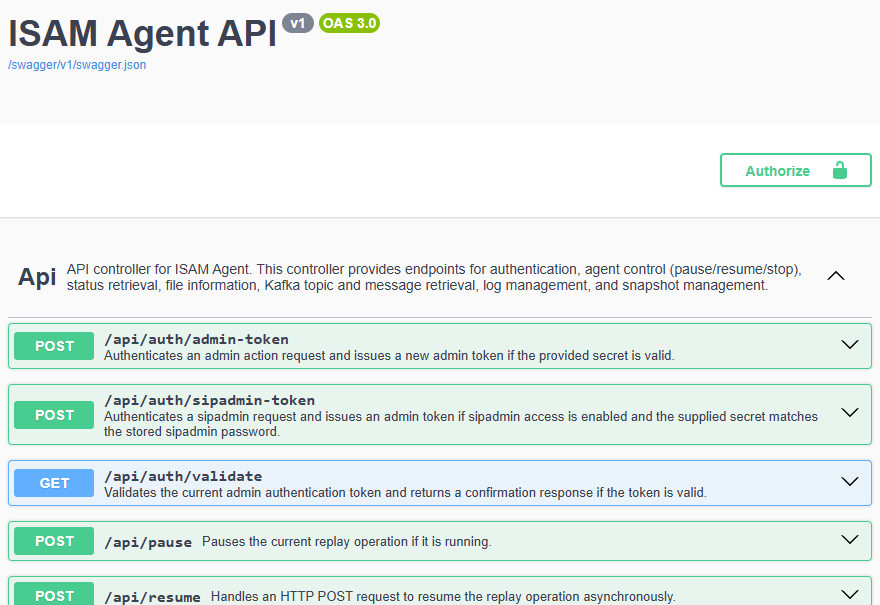
To interact with the API directly from the Swagger documentation page, use this endpoint's Try it out feature, passing the current admin secret in the AdminSecret property of the JSON message in the request body and, if successful, copy the returned JWT data, then click the Authorize button near the top of the page, and paste in the JWT data. If successful, you can then interact with all of the other endpoints.
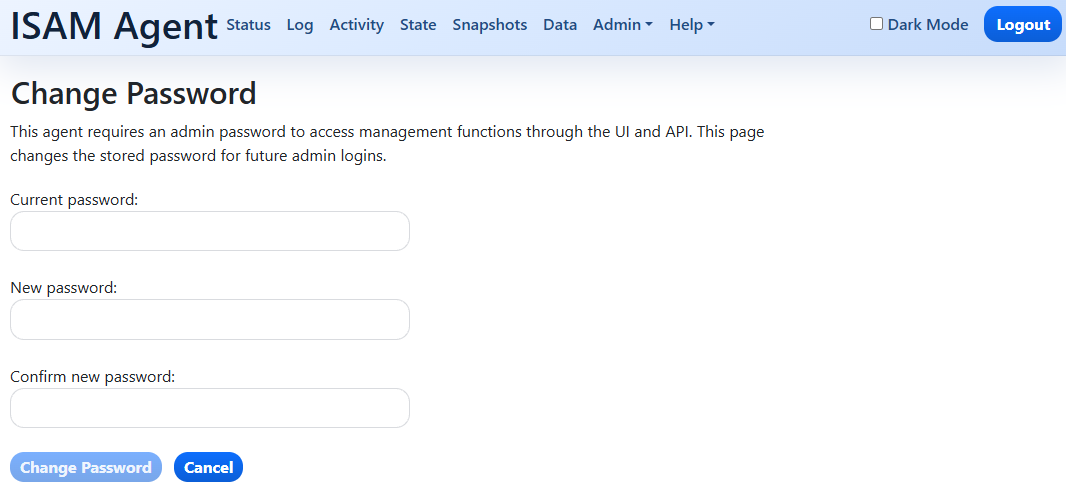
Change Password
The Change Password option changes the password used to authenticate to the ISAM Agent administration interface and API. The administrator must provide the current password, enter the new password twice, and satisfy the configured minimum length. After a successful change, the current session is logged out.
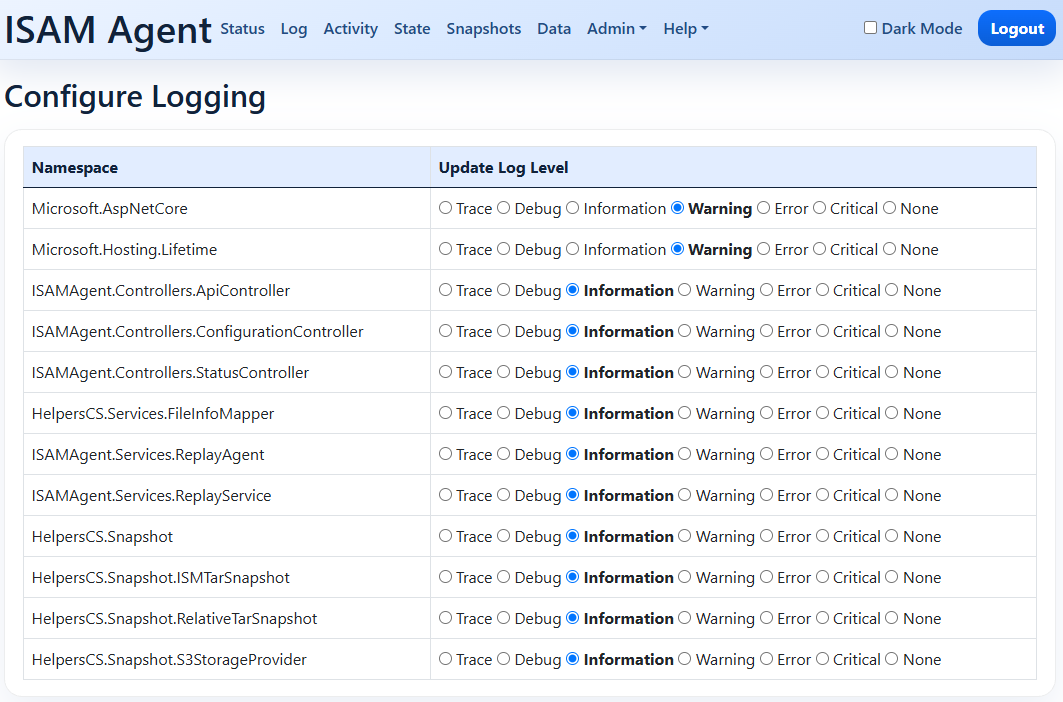
Configure Logging
The Configure Logging option displays the available logging namespaces and their current levels. The administrator can change each namespace to Trace, Debug, Information, Warning, Error, Critical, or None at runtime, which is useful for troubleshooting without restarting the agent. These changes are runtime changes and are not persisted as configuration.
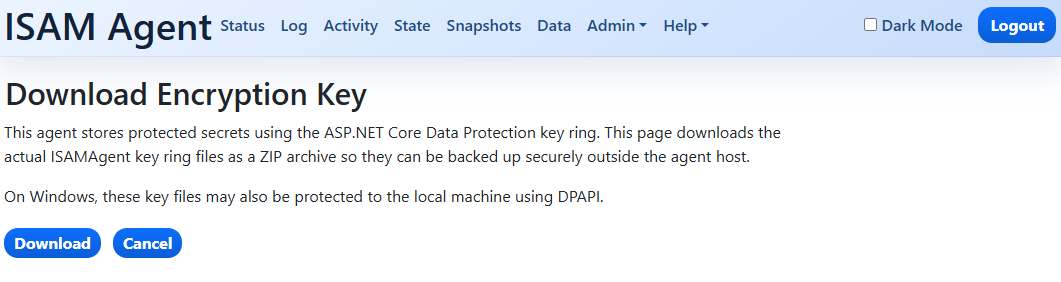
Download Encryption Key
The Download Encryption Key option downloads the ISAM Agent’s ASP.NET Core Data Protection key ring as a ZIP archive. These keys protect stored secrets and are needed when backing up or migrating the agent’s protected data. The downloaded archive must be treated as sensitive and stored securely.
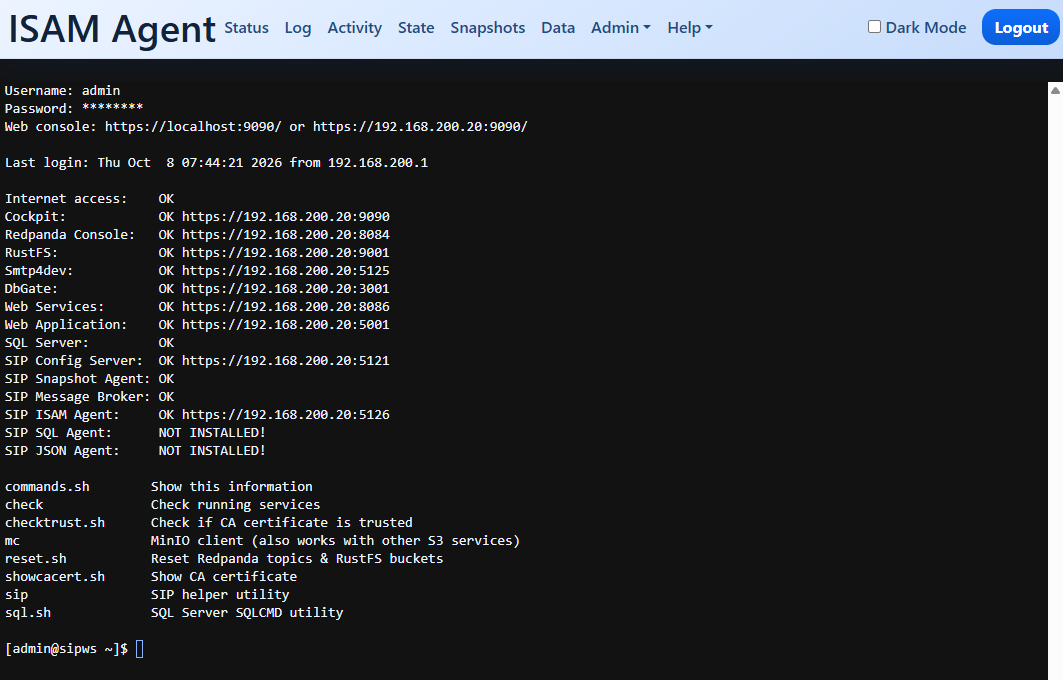
Host Terminal
If enabled by the ISAMAgent.EnableHostTerminal configuration option, the Host Terminal option opens a browser-based terminal connected through SSH to the local host. The user supplies local SSH credentials, after which the terminal provides an interactive shell session.
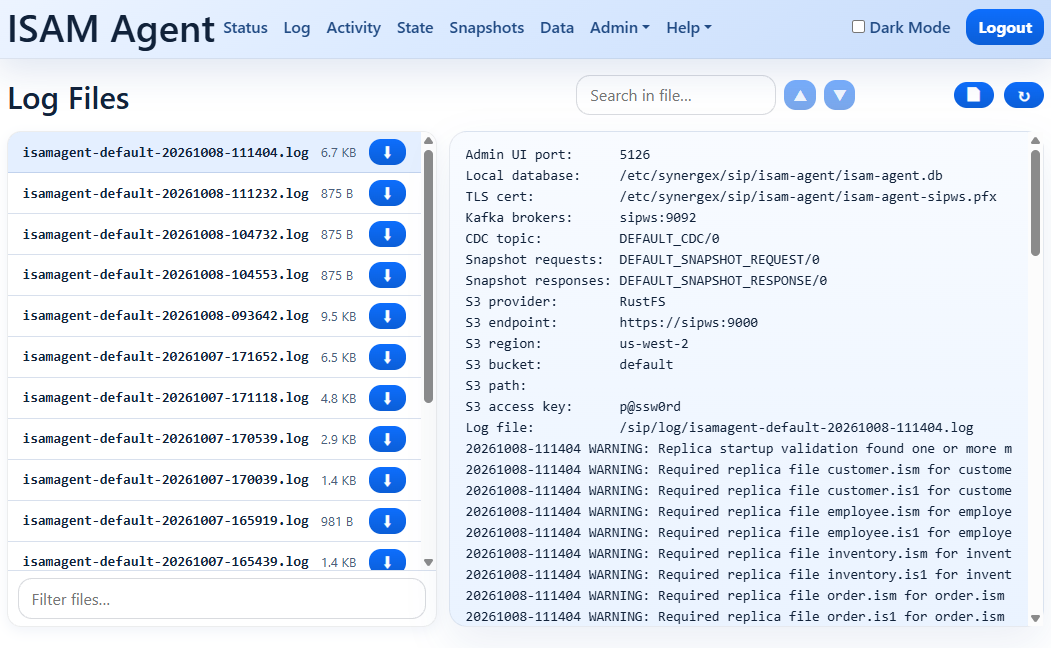
Log Files
The Log Files option lists the ISAM Agent log files from the configured log directory. A selected log can be viewed in the browser, searched, filtered, or downloaded. When file logging is enabled, the page also provides a control to cycle to a new log file.
Manage sipadmin Access
The Manage sipadmin Access option enables or disables access through the sipadmin command-line administration utility and allows its password to be set or changed. The password is stored in encrypted form in the agent’s local database and is separate from the web administration password.
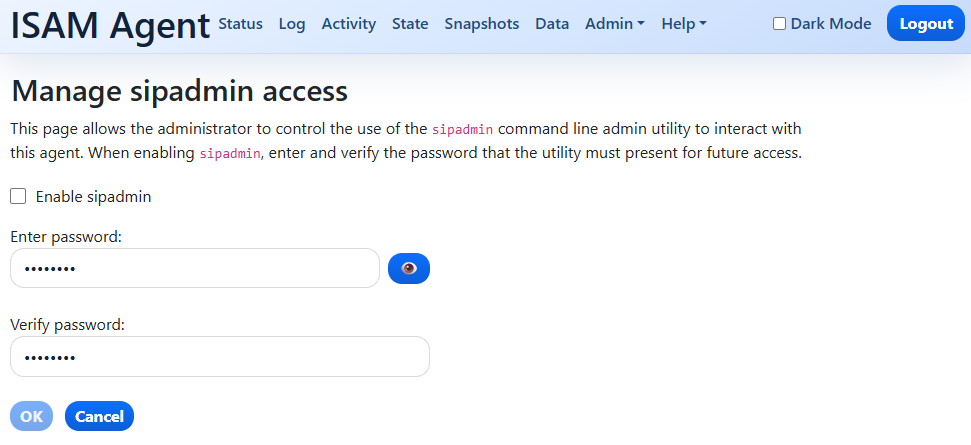
NOTE: The sipadmin utility is an experimental tool that is currently being developed to provide administrative command-line access to and control of several Streaming Integration Platform components. It has not yet been released for use.