Logging in to the Linux Server
To get started with the workshop you must log in to your Linux system. If you have SSH-capable terminal emulation software such as Reflections, PowerTerm, PuTTY, or similar, you can use that.
Log in with a Terminal Emulator
- Establish an SSH connection using either the DNS name sipws or the system's TCP/IP address, using the normal SSH port 22.
- Log in using the username admin and the password p@ssw0rd.
If you do not have a terminal emulator available, or prefer to work in a browser, you can log in by using the operating system's Cockpit web browser management interface.
Log in with a Web Browser
- Open a web browser and connect to https://sipws:9090.
- Log in using the username admin and the password p@ssw0rd.
- Select the Terminal option from the navigation bar on the left side.
Regardless of how you choose to log in, you should see information like this:
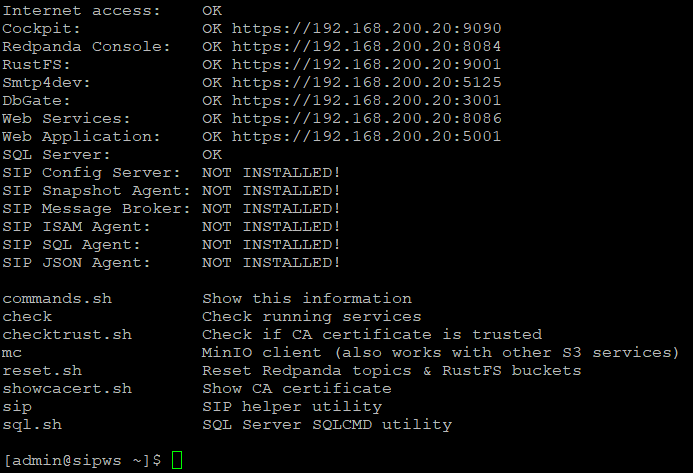
The top part of this information is providing a snapshot of the state of the pre-installed applications hosted by the server. You can display this information at any time using the shortcut command check. Notice that the six Streaming Integration Platform (SIP) applications are not yet installed; you will be installing and configuring those applications during the workshop.
The bottom part of this information is listing several shortcut commands that are available in the workshop environment. You can display this information at any time using the shortcut command commands.