Removing Temporary CA Trust
Earlier in the workshop you installed certificates from two Certification Authorities into your Windows user account Trusted Root Certification Authorities store. To remove these trust relationships:
First remove trust of CA created by Configuration Server that was used to issue TLS certificates for all of the Streaming Integration Platform applications:
Execute this command in a Windows Command Prompt
certutil -user -delstore Root "*Streaming Integration Platform CA on SIPWS*"
You will see a Root Certificate Store warning dialog:
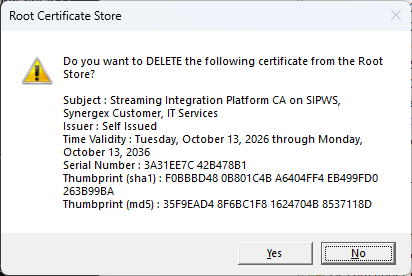
Confirm the operation
Click the Yes button.
Don't worry if you see more than one similar dialog pop up, it just means that somehow you wound up with multiple copies of the certificate installed.
You will see output something like this:
Root "Trusted Root Certification Authorities"
Deleting Certificate 0: CN=Streaming Integration Platform CA on SIPWS, O=Synergex Customer, OU=IT Services:f0bbbd480b801c4ba6404ff4eb499fd0263b99ba
CertUtil: -delstore command completed successfully.
Now remove trust of the CA that issued the certificates used by all of the pre-installed applications:
Execute this command in a Windows Command Prompt
certutil -user -delstore Root "*Local CA (SIPWS)*"
You will see a Root Certificate Store warning dialog:
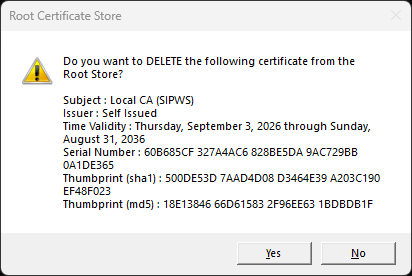
Confirm the operation
Click the Yes button.
Don't worry if you see more than one similar dialog pop up, it just means that somehow you wound up with multiple copies of the certificate installed.
You will see output something like this:
Root "Trusted Root Certification Authorities"
Deleting Certificate 2: CN=Local CA (SIPWS):500de53d7aad4d08d3464e39a203c190ef48f023
CertUtil: -delstore command completed successfully.
Close Browser Applications
Open browser windows will continue to trust the Certification Authorities until closed.