Trusting the Linux Certification Authority
Most of the products that you will be using, and that have been pre-installed on your Linux server, present a web-browser based user interface accessible via HTTPS. All of these applications have been configured to use self-signed TLS certificates issued by a local Certification Authority (CA).
You will need to make your local Windows workstation temporarily trust your Linux server CA in order to avoid security warnings at almost every step of the workshop.
Instructions for removing this temporary trust are provided at the end of the workshop, here.
Download and Open the CA Certificate
- Click HERE to download the certificate to your Downloads directory.
You should see a file named local-ca.crt downloaded to your Downloads directory.
Execute this command into a Windows Command Propmt
certutil -user -addstore Root "%USERPROFILE%\Downloads\local-ca.crt"
You should see a security warning like this:
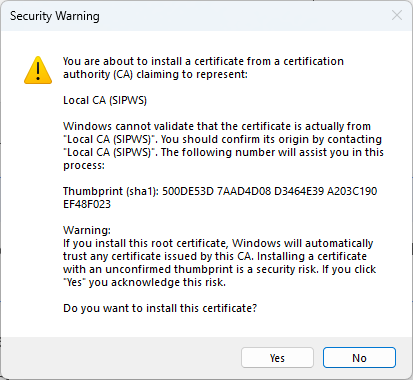
Dismiss the security warning
- Click the Yes button.
You should see a message in the Command Prompt window confirming that the certificate was installed:
Root "Trusted Root Certification Authorities"
Signature matches Public Key
Certificate "Local CA (SIPWS)" added to store.
CertUtil: -addstore command completed successfully.
Your browser must be restarted to pick up on the new trust relationship in the operating system.
Close and Re-Open your Browser
- Close ALL INSTANCES of your web browser.
- Open a new browser and navigate back to the instructions site, but this time using https://sipws.
You should not see any security warning pages, and the browser should no longer be reporting the site as insecure.
What is Now Trusted
Having established trust of the certification authority on your assigned Linux system, you should be able to securely access several browser applications using HTTPS and those applications should be trusted by your web browser.
Some of the applications listed below require login credentials to gain access. If prompted for credentials use username admin and password p@ssw0rd.
Try the applications
- Click each of the links below to verify that you can access the applications.
| Application | Port | Description |
|---|---|---|
| Linux Cockpit | 9090 | Linux system administration and terminal access |
| Redpanda Console | 8080 | Redpanda (Kafka) monitoring and light admin |
| Rustfs Console | 9001 | RustFS (S3 server) admin & monitoring |
| SMTP4DEV Console | 5125 | Development SMTP (email) server |
| DbGate | 3001 | Database client utility |
| Web Services | 8086 | Application web services (Harmony Core) |
| Web Application | 5001 | Application web UI (ASP.NET Razor Pages) |