Trusting Configuration Server
The Configuration Server is an ASP.NET application that presents both a REST API for automated remote management, as well as a browser UI for local administration and monitoring.
By default when you install the Configuration Server it creates its own Certification Authority, and uses that CA to generate a TLS certificate to secure the server's API and UI.
Log in to Configuration Server
- Open the Configuration Server UI.
Just like when you first connected to the web site containing the workshop instructions, your browser won't currently trust the new CA and so, depending on which web browser you are using, you will see a security warning something like this:
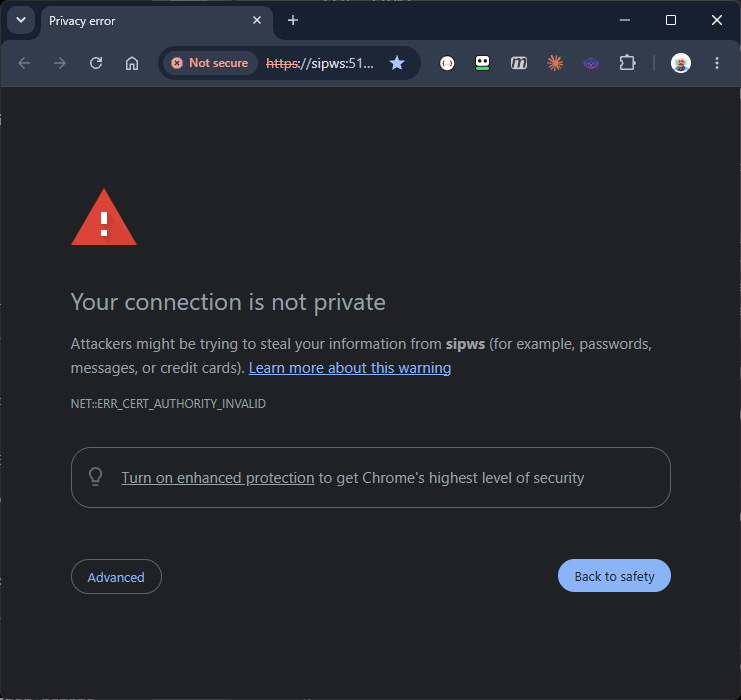
You need to tell your web browser that it's OK to proceed to the site. This is how it's done in the Google Chrome browser:
Proceed to the untrusted site
- Click the Advanced button, then scroll down and click the Proceed to sipws (unsafe) link.
You should then see the Configuration Server login page:

Configuration Server only has a single administrator user account, so a username is not necessary. When first installed the admin password has a default value that can be changed once logged in.
Log in to Configuration server
- Enter the default admin password p@ssw0rd and click the Authenticate button.
You should see the Configuration Server UI, although your browser will still be warning you "Not secure":
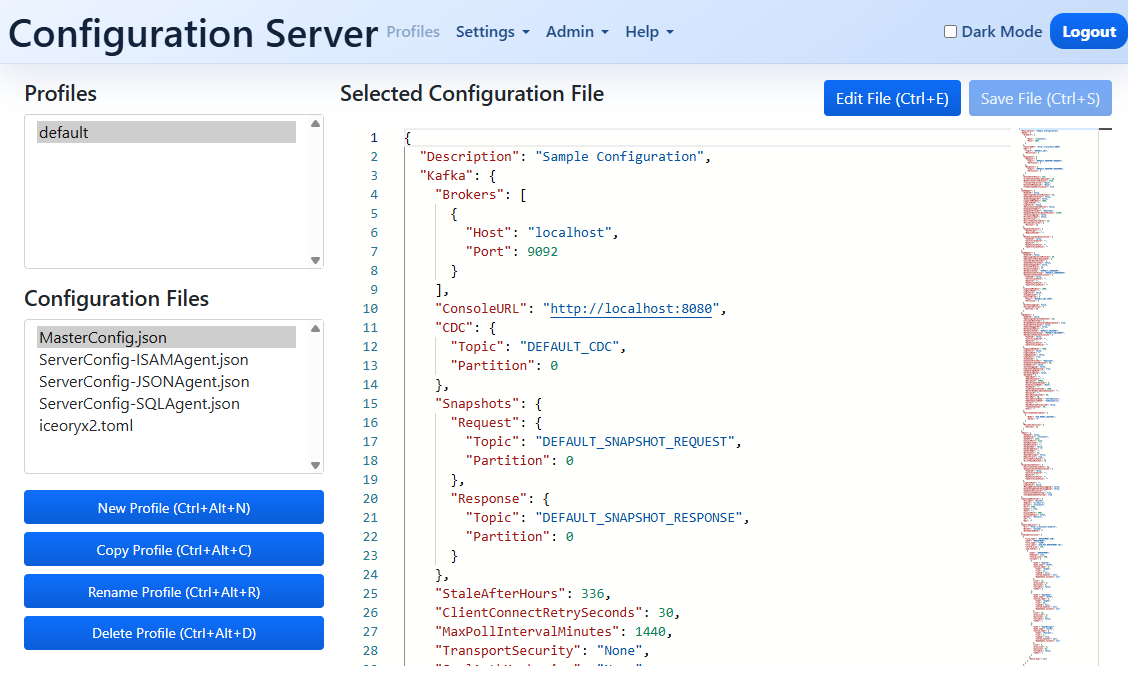
By default, Configuration Server generates another Certification Authority and then uses that CA to issue TLS certificates for its own use, and for use by other Streaming Integration Platform components, such as SQL Agent, ISAM Agent and JSON Agent. If you don't want this to happen then you can provide a certificate for Configuration Server, and for the other components yourself, and perform some additional configuration steps before the installation.
For the workshop, we'll continue to use the CA and certificate generated by Configuration Server, and we will also allow it to issue additional certificates to the other components. Before proceeding we must establish trust of the Configuration Server's CA by your Windows system.
Export the Configuration Server CA Certificate
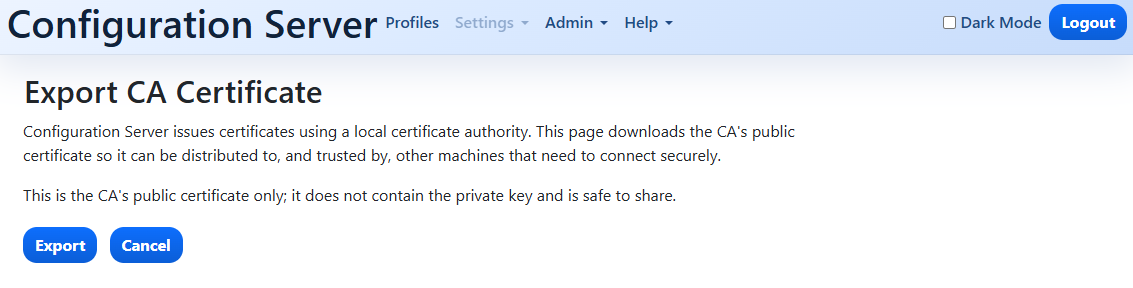
- From the Configuration Server UI, select Admin then Export CA Certificate.
You will see a page that looks like this:
Expoer the Certificate
- Click the Export button.
You should see a file named config-server-ca.crt downloaded to your Downloads directory.
Execute this command into a Windows Command Propmt
certutil -user -addstore Root "%USERPROFILE%\Downloads\config-server-ca.crt"
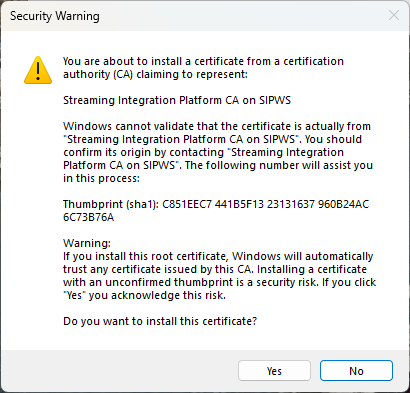
You should see a Security Warning dialog:
Complete the Process
- Click the Yes button to install the certificate.
You should see a message in the Command Prompt window confirming that the certificate was installed:
Root "Trusted Root Certification Authorities"
Signature matches Public Key
Certificate "Streaming Integration Platform CA on SIPWS" added to store.
CertUtil: -addstore command completed successfully.
Your browser must be restarted to pick up on the new trust relationship in the operating system.
Close and Re-Open your Browser
- Close ALL INSTANCES of your web browser.
- Open a new browser and navigate back to Trusting Configuration Server.
This time you should not see any security warning pages, and the browser should no longer be reporting the site as insecure.